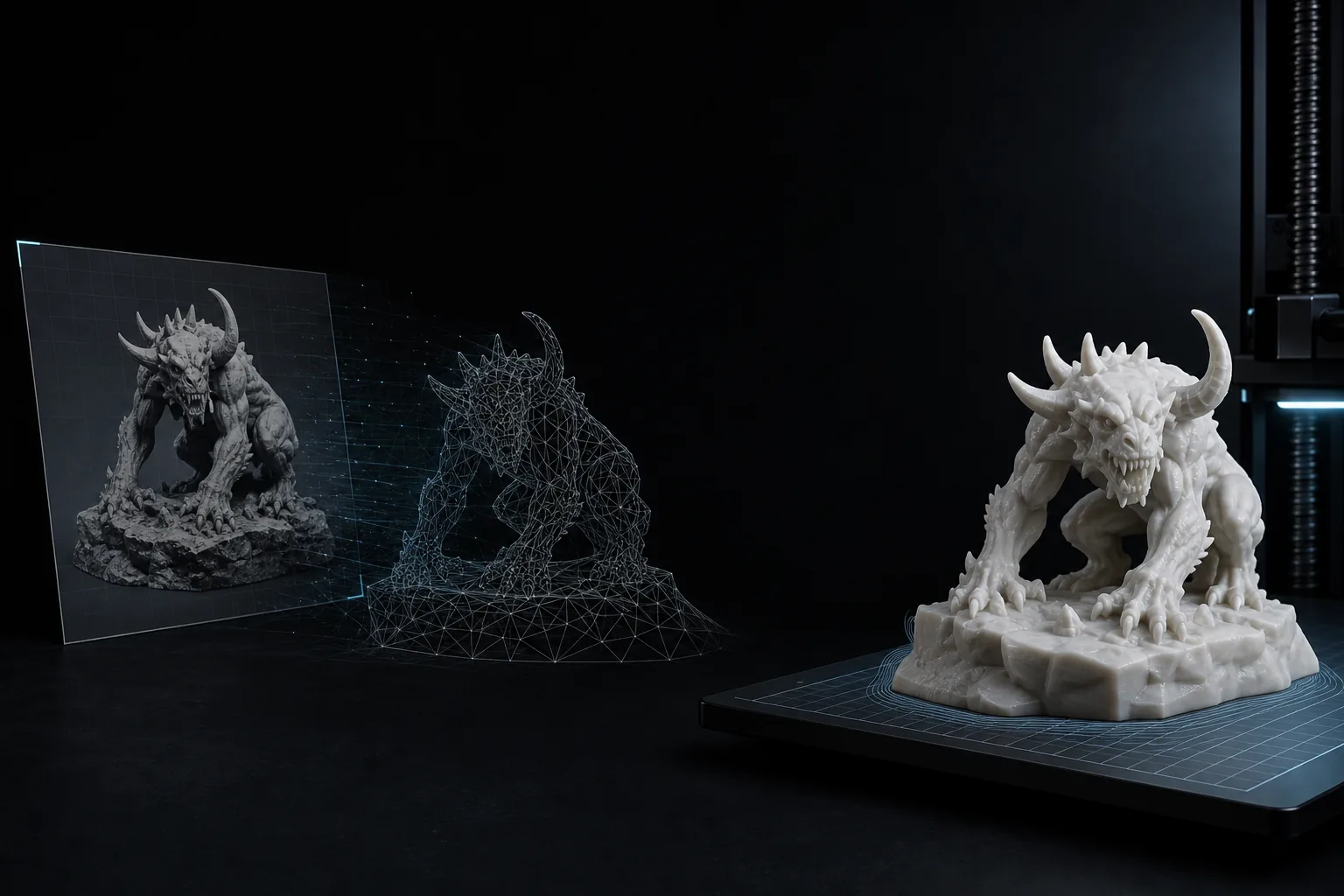
Transparent PNG references
PNG files with a clear subject and transparent or simple background are easier to separate from the scene before STL generation.
Upload a PNG image and turn it into a printable STL model with AI-powered image to 3D generation.
Drop or Click to Upload
Min resolution 128x128 pixels • Max 8MB
Ready to generate
Upload an image to create your STL model.
PNG input
Upload PNG artwork, transparent-background references, icons, sketches, or product images.
AI 3D mesh
Generate a printable 3D model instead of a simple flat extrusion.
STL export
Preview the result online, then download an STL file for slicer review.
A clean PNG gives the converter stronger shape cues and usually produces a better printable model.
PNG files with a clear subject and transparent or simple background are easier to separate from the scene before STL generation.
PNG artwork can become signs, plaques, keychains, tokens, and relief-style printable objects when the silhouette is crisp.
Use a PNG product render, prop concept, or isolated object image when you want a fuller 3D starting mesh for printing or cleanup.
A direct path from PNG image to previewable 3D model and STL export.
Choose a PNG file with a clear subject, good contrast, and as little background clutter as possible.
Use single image mode for quick PNG to STL generation, or add front, back, left, and right views for better shape control.
AI creates a 3D model from the PNG. Rotate the preview and check the main silhouette before exporting.
Export the STL file, then inspect it in Cura, PrusaSlicer, Bambu Studio, Blender, or another 3D printing tool.
A focused PNG-to-STL workflow for turning clean image references into printable geometry.
Start with a PNG file from your design tool, screenshot, concept sheet, product image, or transparent-background asset.
ImgToSTL estimates volume and shape from the PNG image, then creates a 3D model that can be inspected before export.
Use one clean PNG for fast generation, or add extra views when you need the model to understand more sides of the object.
Export STL for 3D printing, then check scale, wall thickness, supports, and mesh repair in your slicer.
Keep geometry mode for print-first STL output, or enable textures when you also need a richer 3D preview.
If you only have an idea and no PNG reference, switch to Text to 3D and generate a model from a written description.
PNG to STL conversion turns a PNG image into a 3D mesh that can be exported as an STL file. Traditional PNG to STL tools often extrude a flat silhouette or build a heightmap. ImgToSTL uses AI image to 3D generation to create a fuller printable model from a clear PNG reference.
The best PNG to STL results usually come from isolated objects, sharp edges, and simple backgrounds. Transparent PNG files can be especially useful because the subject is already separated from the background. Logos, icons, flat illustrations, and product renders can all work, but very thin lines, tiny text, busy compositions, and low-contrast images may need cleanup after generation.
After downloading the STL, always inspect the mesh before printing. STL files store geometry only, so you should check scale, wall thickness, connected parts, flat bases, supports, and non-manifold edges in your slicer or modeling software.
Yes. Upload a PNG image, generate a 3D model with AI, preview it in the browser, and export the result as an STL file for 3D printing review.
PNG can be better when the subject has crisp edges or a transparent background. JPG can work well for photos, but compression artifacts may make fine details less clear.
Yes. Transparent PNG files are often useful because the object is already separated from the background, which can help the converter focus on the main shape.
Yes, but logo results are usually closer to relief, plaque, token, or keychain workflows. For complex logos, expect to check thickness and clean small details before printing.
No. Clean single-object PNG files work best. Thin strokes, tiny text, busy scenes, or low-contrast artwork may generate parts that need cleanup.
STL stores geometry only. If you enable textured output, use GLB or another textured format for color preview, then use STL for the print-focused geometry.
Yes. Multi-view input can help when the object needs more shape information than one PNG can provide.
No. AI generation uses credits. You can upload and inspect the workflow, then choose a credit pack when you are ready to generate STL models.
Use the right image input for your 3D printing workflow, or switch to text when you do not have a reference image.
Start from JPG, PNG, WebP, sketches, drawings, or product images and generate STL-ready 3D models.
Convert JPG photos and compressed image references into 3D models for STL export.
Turn photos of objects, props, miniatures, and simple parts into STL-ready 3D models.
Generate a 3D model from a prompt when you do not have a PNG image ready.