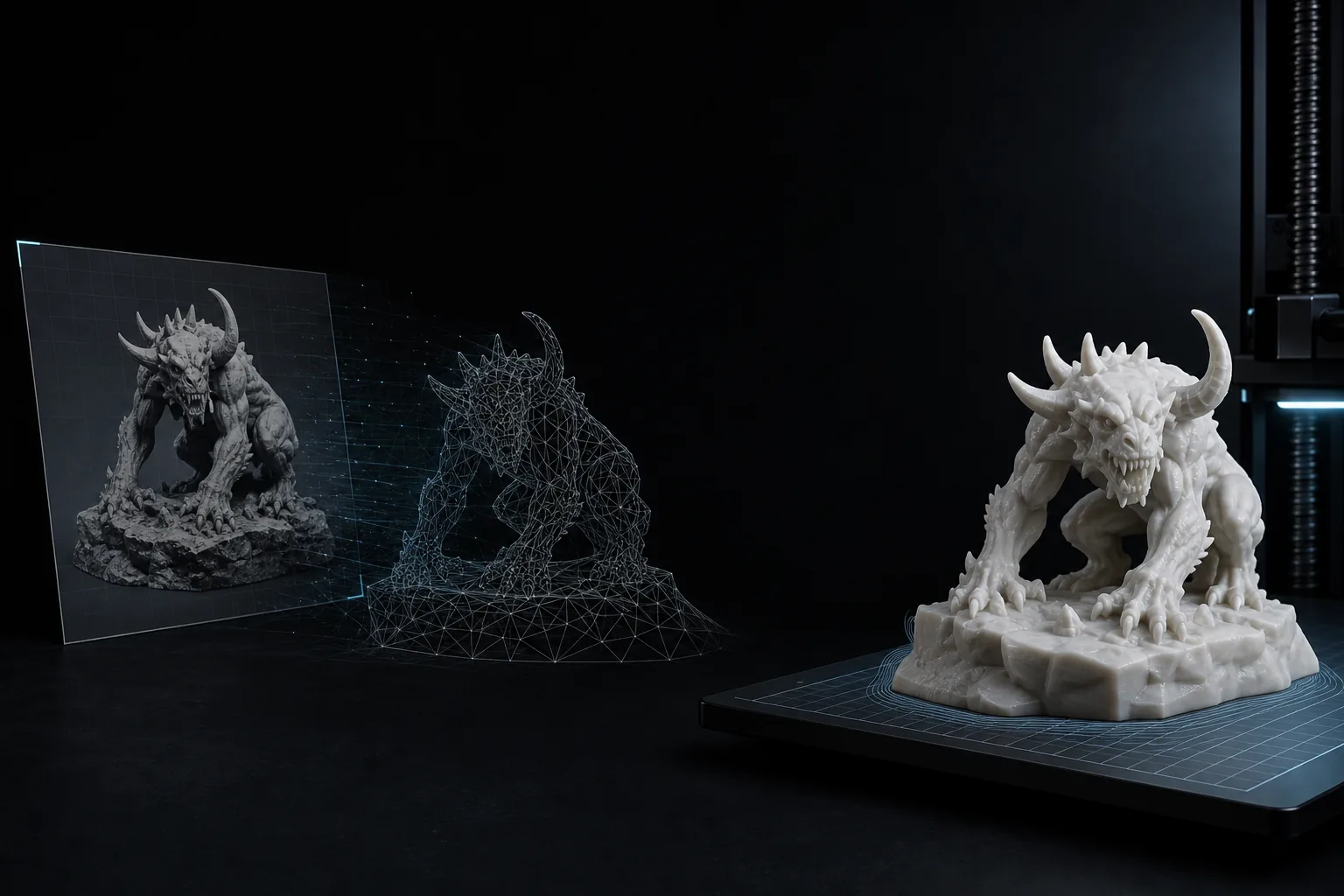
Object photos
A clean JPG photo of one object can become a 3D starting mesh for printing, repair, sculpting, or Blender cleanup.
Upload a JPG image or photo and generate an STL-ready 3D model for slicing, prototyping, and 3D printing.
Drop or Click to Upload
Min resolution 128x128 pixels • Max 8MB
Ready to generate
Upload an image to create your STL model.
JPG input
Use JPG photos, product pictures, sketches, screenshots, and compressed image references.
3D preview
Inspect the generated model in the browser before downloading an STL file.
Print workflow
Export STL for slicers, mesh cleanup, prototyping, and 3D printing checks.
JPG to STL works best when the object is clear, centered, and easy to separate from the background.
A clean JPG photo of one object can become a 3D starting mesh for printing, repair, sculpting, or Blender cleanup.
Use JPG reference images for tabletop props, character accessories, small toys, shields, crates, tokens, and decorative parts.
A photographed drawing or exported JPG concept can help generate a 3D model draft for later refinement and STL export.
Upload a JPG, generate a 3D model, then download STL for slicing and print review.
Choose a sharp JPG image with a clear subject, strong lighting, and minimal background clutter.
Use single image mode for fast JPG to STL conversion, or multi-view mode when you have several reference photos.
AI converts the JPG into a previewable 3D mesh. Rotate the result and check the silhouette and main forms.
Download the STL file and validate scale, supports, thin parts, and mesh repair in your slicer or modeling tool.
A practical workflow for turning common JPG images into STL-ready 3D models.
Upload a JPG or JPEG reference from your phone, camera, design export, screenshot, or product image library.
The converter uses AI to infer shape and volume from the JPG image instead of only extruding a flat outline.
Add extra views when one JPG photo does not show enough of the object's back, sides, or depth.
Download STL for 3D printing workflows, then inspect the mesh in your slicer before printing.
Keep textures off for a cleaner white model preview focused on STL geometry, or enable textures for richer visual checks.
If your JPG does not describe the object clearly enough, use Text to 3D to generate a new model from a prompt.
JPG to STL conversion turns a common JPG image into a 3D model that can be exported as an STL file. For 3D printing, this workflow is useful when your source reference is a phone photo, product image, sketch export, or compressed design image.
Because JPG images can contain compression artifacts, lighting variation, and busy backgrounds, source quality matters. A centered object with visible edges and simple lighting usually produces better JPG to STL results than a crowded scene or low-resolution photo. If you can provide multiple views of the same object, multi-view input can give the AI more shape information.
After export, treat the STL as a printable starting point. Check wall thickness, scale, small details, supports, flat bases, and non-manifold edges before printing. For complex models, a cleanup pass in Blender, Meshmixer, Fusion, or your slicer may still be needed.
Yes. Upload a JPG image, generate a 3D model with AI, preview the result, and download STL for 3D printing review.
Yes. JPG and JPEG refer to the same image format family. Use this JPG to STL converter for either JPG or JPEG image files.
Use a sharp, well-lit image with one main object, visible edges, and a simple background. Avoid tiny subjects, motion blur, heavy compression, and crowded scenes.
Yes, but the result depends on photo quality and object complexity. The generated STL should be checked in a slicer before final printing.
For many object photos, yes. Heightmap tools usually create raised relief from brightness. ImgToSTL uses AI to estimate fuller 3D shape from the JPG reference.
STL stores geometry only, not image colors. Use textured formats such as GLB for color preview, and STL for the print-focused geometry.
Use PNG when you have crisp artwork, transparent backgrounds, or exported design graphics. Use JPG when your source is a photo or compressed image.
AI generation uses credits, so it is not an unlimited free converter. You can review the workflow and choose a credit pack when you are ready to generate.
Choose the image format that matches your source, or use a prompt when you do not have a reference image.
Convert JPG, PNG, WebP, sketches, drawings, and product images into STL-ready 3D models.
Use PNG artwork, transparent-background images, and design exports for STL generation.
Turn object photos and real-world references into printable STL model drafts.
Create a 3D model from a prompt when a JPG reference is not enough.