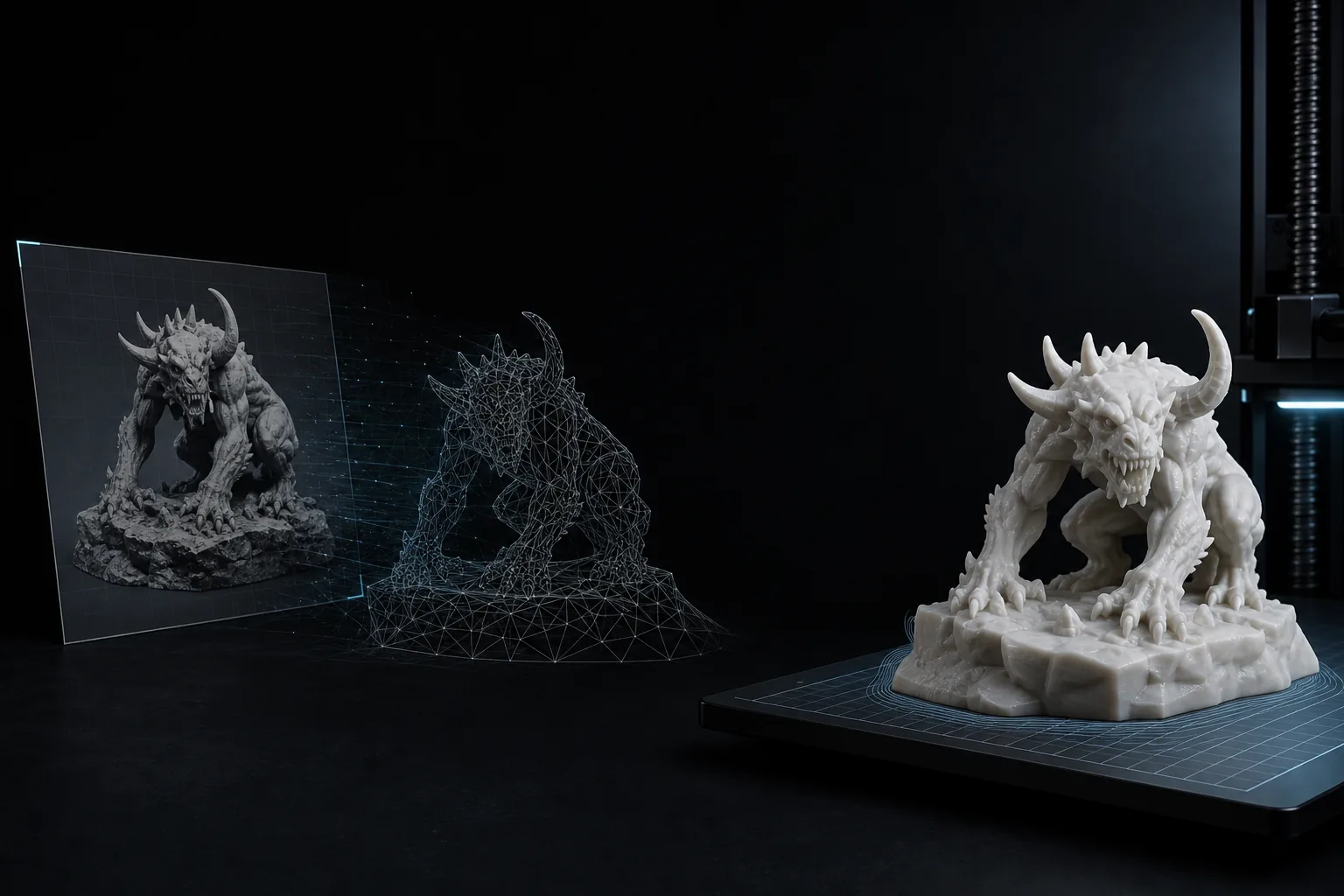
Single object photos
Photos with one centered object, visible edges, and simple lighting usually create the most useful STL starting models.
Turn a photo of an object, prop, miniature, or simple part into an STL-ready 3D model for 3D printing.
Drop or Click to Upload
Min resolution 128x128 pixels • Max 8MB
Ready to generate
Upload an image to create your STL model.
Photo input
Upload object photos, product shots, sketches, props, miniatures, or simple part references.
3D model preview
Inspect the generated shape online before downloading the STL file.
Print-ready workflow
Export STL and continue with slicer checks, mesh cleanup, supports, and 3D printing.
A photo to STL workflow depends heavily on the clarity of the object in your source image.
Photos with one centered object, visible edges, and simple lighting usually create the most useful STL starting models.
Use photos of toys, tabletop props, cosplay parts, decorative objects, or miniature references for printable model drafts.
Photo to STL can help create early meshes from simple parts or product references, then you can refine dimensions in CAD or mesh tools.
Upload a photo, generate a 3D model, then export STL for 3D printing review.
Choose a photo with one main subject, good lighting, visible edges, and minimal background noise.
For objects with important side or back details, use multi-view input to provide more reference information.
Create the 3D model with AI, rotate the preview, and check whether the main proportions and silhouette are useful.
Export STL and validate it in a slicer or modeling tool before printing, especially for small details and thin parts.
A 3D printing-focused workflow for turning real-world image references into printable STL geometry.
Upload JPG, PNG, JPEG, or WebP photos from a camera, phone, design export, or product reference board.
AI estimates 3D form from the photo and creates a model you can rotate, inspect, and export.
Add front, back, left, and right photos when one view does not show enough of the object's full shape.
Download STL for slicing and print review, with additional formats available when your workflow needs them.
Use geometry mode for cleaner STL inspection, or generate textures when visual preview is also important.
If the photo is too unclear, switch to Text to 3D and describe the object you want to generate.
Photo to STL conversion uses an image of a real object as the starting point for a 3D printable model. Instead of manually modeling everything from scratch, you upload a photo, generate a 3D mesh, preview it online, and export STL for slicer review.
This workflow is most useful for object references, props, toys, miniatures, decorative pieces, sketches, and simple prototype ideas. It is not the same as precise 3D scanning. A single photo cannot show every hidden surface, so complex objects may need multiple views, regeneration, or cleanup in a modeling tool.
For 3D printing, the final check matters. After downloading the STL, inspect scale, wall thickness, disconnected parts, overhangs, supports, and mesh repair issues in Cura, PrusaSlicer, Bambu Studio, Blender, or another tool before printing.
Yes. Upload a clear photo, generate a 3D model with AI, preview it online, and export the model as an STL file.
No. Photo to STL estimates a 3D model from image references. It can be useful for printable drafts, but it is not a precise dimensional scan.
Use well-lit photos with one clear subject, visible edges, and a simple background. Avoid reflective, transparent, tiny, blurry, or crowded subjects.
Yes. Multi-view input can improve the result when the object has important side, back, or depth information.
Generated STL files are printable starting points, but you should still check scale, wall thickness, supports, small details, and mesh repair before printing.
It may generate a rough model, but likeness and printability vary. Clear object, prop, miniature, and product photos are usually more reliable.
Common image formats such as JPG, JPEG, PNG, and WebP are supported when the image is clear enough for model generation.
No. AI model generation requires credits. You can review the workflow and examples, then choose credits when you are ready to generate.
Start from a photo, image file, or prompt depending on the reference you already have.
Convert images, drawings, sketches, and product references into STL-ready 3D models.
Use JPG photos and compressed image references for AI STL generation.
Turn PNG images, transparent-background assets, logos, and artwork into STL model drafts.
Generate a 3D model from a written prompt when you do not have a usable photo.